Free YouTube thumbnail prompt builder
One idea.
Three useful briefs.
Turn your topic into a main prompt, a simpler alternative and an edit brief. Copy or download the text, then choose where to create your image.
This builder writes text, not images. It does not upload or store your inputs. Thumb Maker is an independent affiliate publisher, not Pikzels. The briefs are original planning templates, not tested image outputs or a promise of higher CTR. Commercial links are disclosed where they appear.
Build a thumbnail brief
Fill the three required fields, or load an illustrative example and adapt it to your own video.
Your three planning prompts
These briefs describe the same video in different ways. Review the wording before using it in an image tool.
Next: use the brief in your chosen image tool, then inspect the exported file with the thumbnail checker. For the native YouTube option, follow the Ask Studio instructions below. If considering Pikzels, count attempts and edits with the credit calculator before choosing a subscription.
Affiliate link: Thumb Maker may earn a commission if a visitor subscribes through the following link. It opens Pikzels; the referral does not establish a discount.
Give your brief a visual direction
What should stand out?
Pick one thing the viewer should notice first. These supplied images illustrate composition choices; the builder above creates text briefs only.
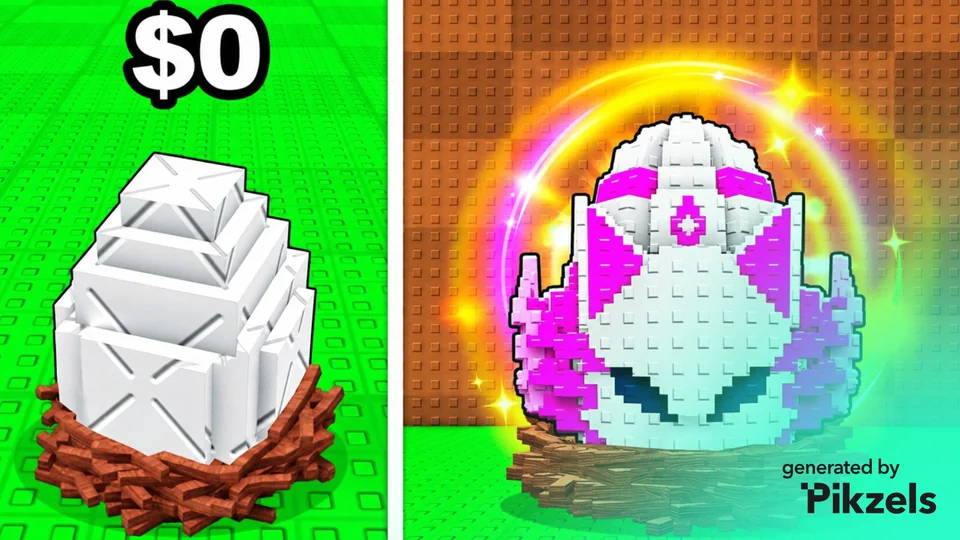
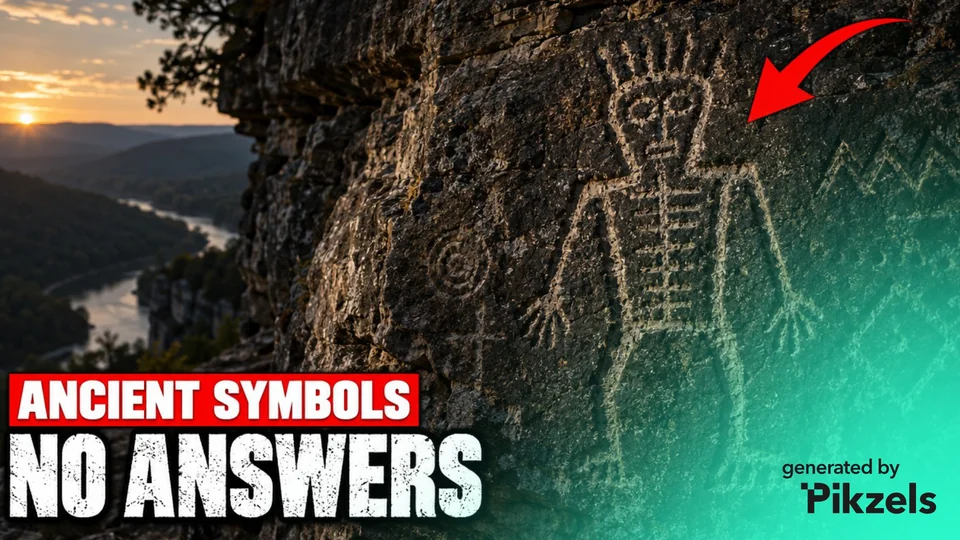
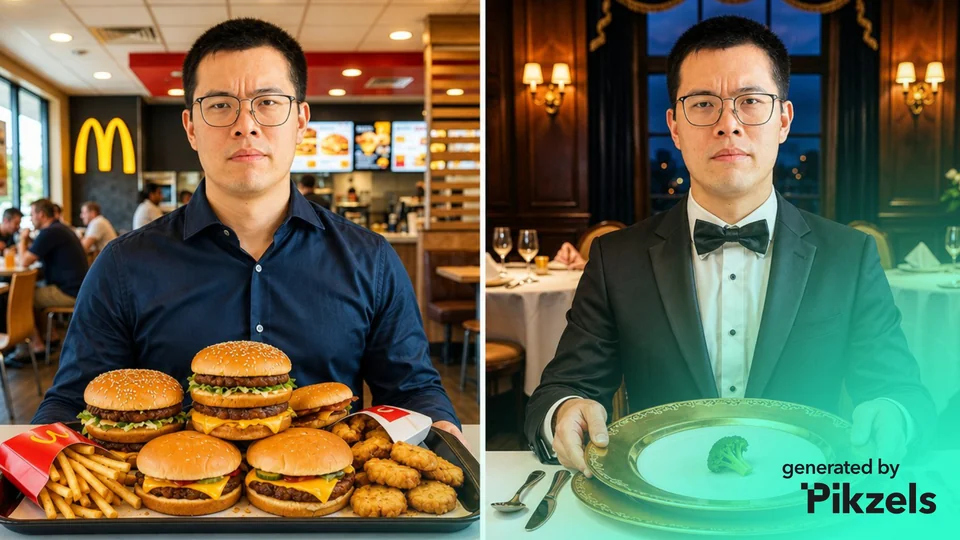
Pikzels-branded examples supplied to Thumb Maker, separate from the text-only builder. They are not outputs from its example briefs or a Thumb Maker product test.
A thumbnail prompt template you can copy
Create a 16:9 thumbnail for a video about [topic]. Show [main subject] first, with [visible payoff or contrast] clearly readable. Use [composition] and [visual direction]. Leave a clear area for [short text] to be added in an editor. Keep the scene simple and represent the video’s actual content. Check the result at a small display size.
What should a YouTube thumbnail prompt include?
- One clear topic: state the video instead of asking for a generic “viral thumbnail.”
- A visible subject: identify the object, person or scene viewers should notice.
- A supported payoff: describe the difference or result the video can actually show.
- A composition: specify equal scale for comparisons, a central subject, or space for a text label.
- Text handling: decide whether the image should contain lettering or leave room to add it later.
- Review criteria: ask for clarity at a small size, then check the image yourself.
Why keep text separate from the first image?
Adding a short label in an editor lets you check spelling, placement and contrast directly. If you ask an image generator to create lettering, inspect each character before publishing. A prompt requests an outcome; it does not guarantee that the image model will follow every instruction.
Example: a fair product comparison
Original illustrative brief: “Create a thumbnail for a video comparing USB and XLR desk microphones. Give both microphones equal space and scale, with the connection setup behind each. Use a clean studio look and a simple dividing line. Leave room for ‘USB or XLR?’ to be added later. Do not suggest a winner through size alone.”
This is a planning example, not a generated image or a performed microphone/product test. Use your actual subjects and footage to evaluate whether the idea is accurate.
Use a brief in YouTube Ask Studio
If Ask Studio is available in your YouTube Studio account on a computer, the brief can be a starting point for its native thumbnail workflow. Follow the official thumbnail instructions and check the access conditions in the generator comparison first.
- Copy and review the main brief. Remove any subject or result that your video cannot show.
- Select the actual video in Ask Studio. Add your own reference images if they help, then paste the brief as a thumbnail request.
- Revise one problem at a time. Use the edit brief to describe a specific change, then review the suggested image yourself. Check wording and small-screen clarity before publishing.
Original request example: “Create a thumbnail for the selected USB vs XLR microphone video. Show both microphones at equal scale with a clear dividing line. Leave space for a short comparison label. Use only a comparison the video actually supports.” This is a suggested brief, not an output tested in Ask Studio.
No text is sent to YouTube by this builder. If you paste a brief into another service, that service’s data practices apply. Use your eligible YouTube testing options to evaluate viewer response; this builder cannot predict a winning thumbnail.
Choose what to do with your brief
The AI thumbnail generator comparison explains the starting points and access limits in Pikzels, Canva, Adobe Express, vidIQ and YouTube Ask Studio. The Pikzels vs vidIQ guide focuses on prompt/reference work compared with starting from footage or a video link.
For a dedicated thumbnail workflow, review Pikzels’ current features and plans. Thumb Maker has not tested these generated briefs in Pikzels. The referral below is not a coupon or a promise of a discount.
Affiliate disclosure: Thumb Maker may earn a commission if a visitor subscribes through the following link. It opens Pikzels.
Method and maintenance
The builder assembles your inputs into original prompt templates in the browser. It does not use an AI service to write the text, score the idea or generate a thumbnail. Use it for standard 16:9 video thumbnails; the official YouTube requirements cover current upload rules. The checker distinguishes mobile and desktop file limits.
Published 10 October 2026. Workflow guidance checked 12 October 2026. Editorial standards and affiliate policy.